
Microsoft Dynamics 365 Business Central is a robust ERP system that some companies utilize to control finance, operations, and more. For admins, the Business Central Admin Center is the key environment for managing environments, settings, and operations. In this blog post, we will demystify the Admin Center — how to use it, what you can achieve there, and why you should care.
To access the Business Central Admin Center, you need to have one of the following roles: Internal Tenant Administrator(Global Admin or D365 Admin), Admin Agent, or Helpdesk Agent.
How to Access the Admin Center
There are two primary ways administrators can reach the Business Central Admin Center:
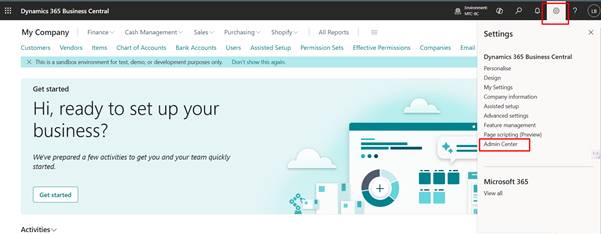
1) Inside the Business Central UI
When you’re logged into Business Central, click the gear icon (⚙️) at the top right of the ribbon. If you’re an administrator, you’ll see an option labelled “Admin Center.”
2) via URL modification
Each Business Central environment URL follows like:
https://businesscentral.dynamics.com/<tenant-id>/<environmentName>
To jump to the Admin Center, replace the environment name at the end with Admin
https://businesscentral.dynamics.com/<tenant-id>/Admin
This direct URL launches the Admin Center for your tenant.
Business Central Admin Center Sections
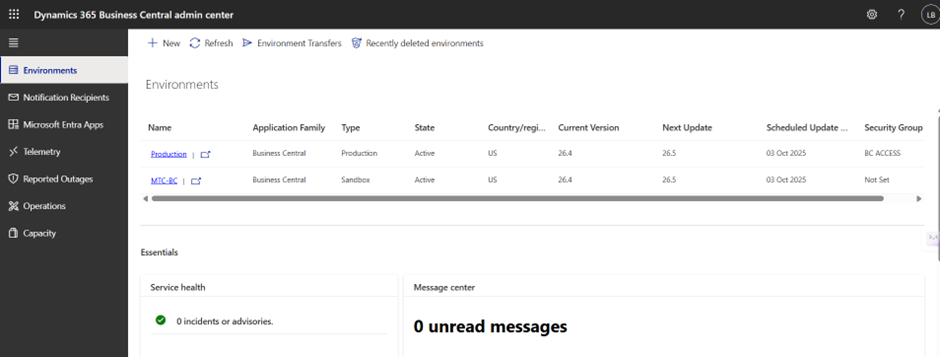
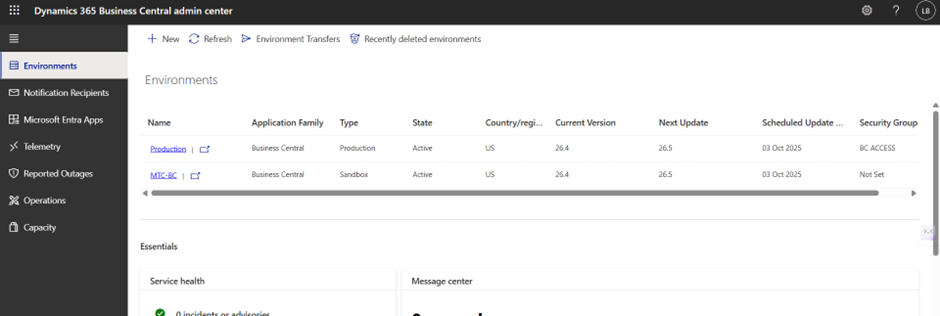
Environments
In this section, you will see all the Business Central environments linked to your tenant. You will click an environment to view its details and manage apps, user sessions, database exports, support, update settings, copy your environment, restore your environment, rename your environment, delete your environment, and refresh your environment.
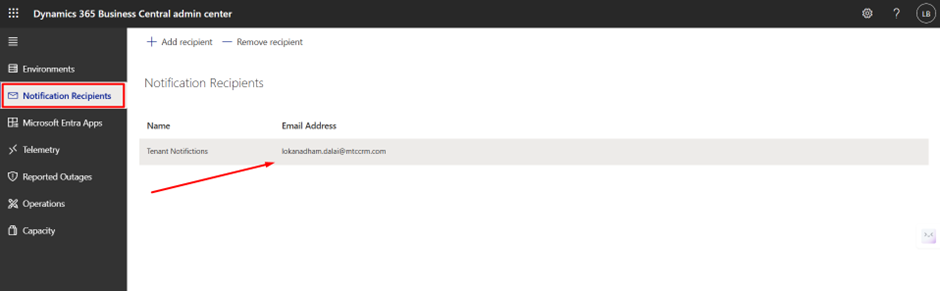
Notification Recipients
Administrators can assign recipients in this section who would like to receive email notifications of new updates, failed updates, incompatible extensions, and more.
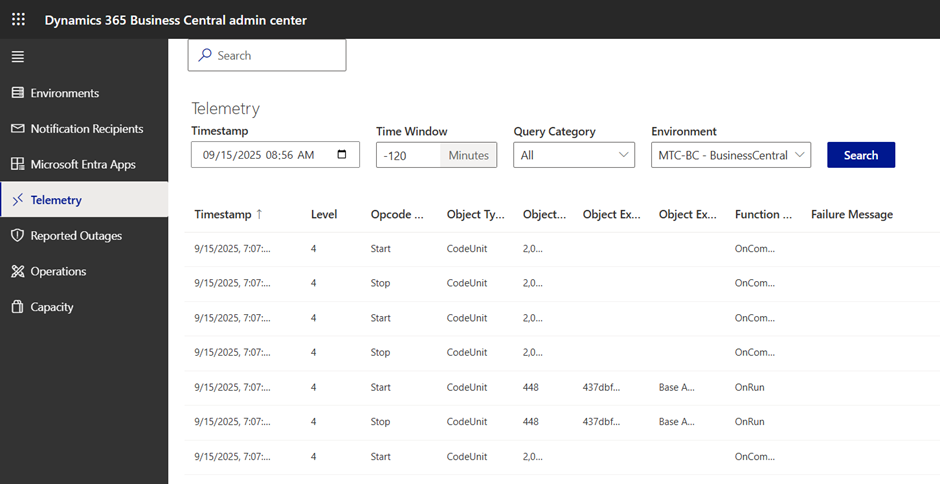
Telemetry
Business Central Telemetry is a rather new feature that provides administrators with information to troubleshoot issues and provide support where needed.
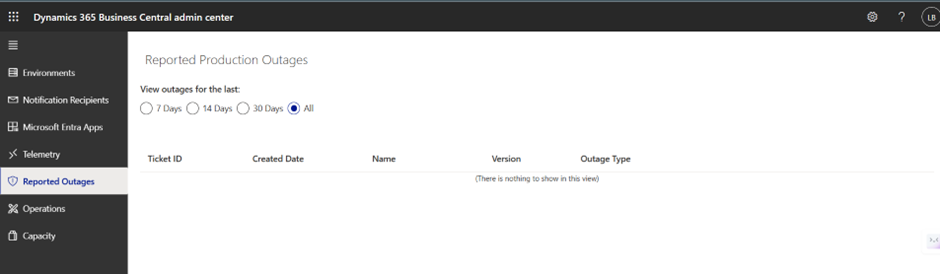
Outage Reports
The Microsoft Cloud offers 99.9% uptime so reported outages should not come across your screen often. With that said if there is or was an outage this would be a good place to check.
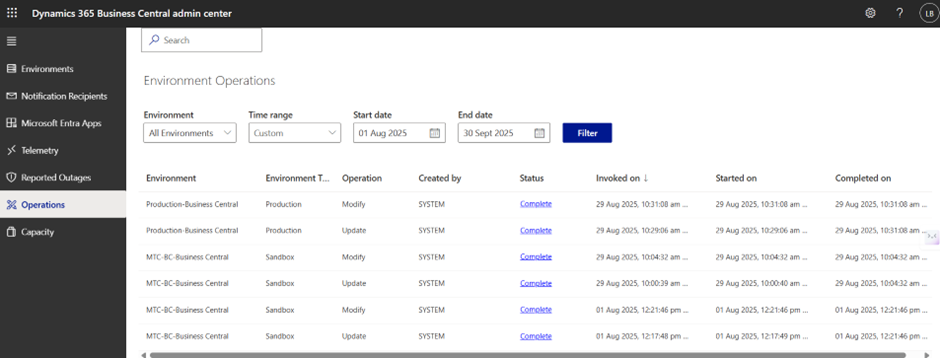
Operations
This section keeps a record of changes made to your environments. You can see who renamed an environment, when an environment was updated, when an environment failed to update, who installed an app, and more.
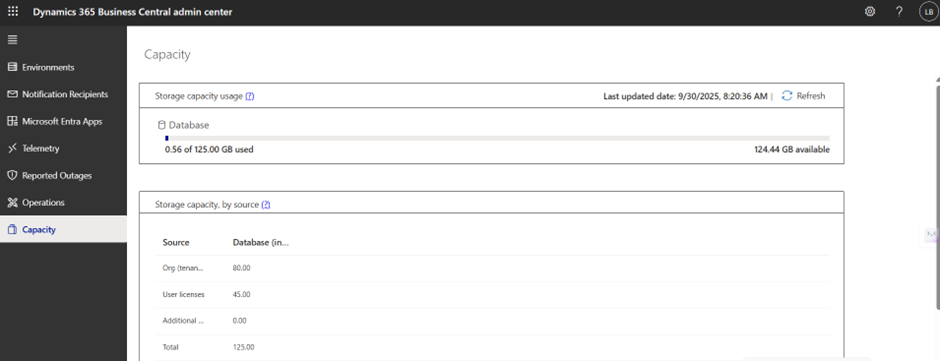
Capacity
The capacity area in the Business Central Admin center may be one of the less visited areas unless your company is of the larger enterprise type. This is because all the modifications Microsoft made to Business Central’s database storage capacity within recent years have enabled 90% of companies not to require extra storage. That aside, it’s always a good idea from time to time to check up on where your organization is in database terms.
This has been a high-level overview of the Business Central Admin Center. I hope this information has helped you get an understanding of what the features of the Business Central Admin Center are, and how they assist administrators to manage their environments.